
New Extension for Plesk. Antivirus Protection to enhance your server security. Why choose Flex Antivirus?
Enable backup and restore for use in migrations.
Allows administrators to export the current firewall configuration and restore it on another server or the same one, speeding up migration and maintenance.
The panel.ini file controls the advanced configuration options of the Plesk panel. Find it at the following path on your Windows server:
Connect via Remote Desktop (RDP) to the server to edit the file, or use the official Plesk extension Panel.ini Editor from the web panel itself.
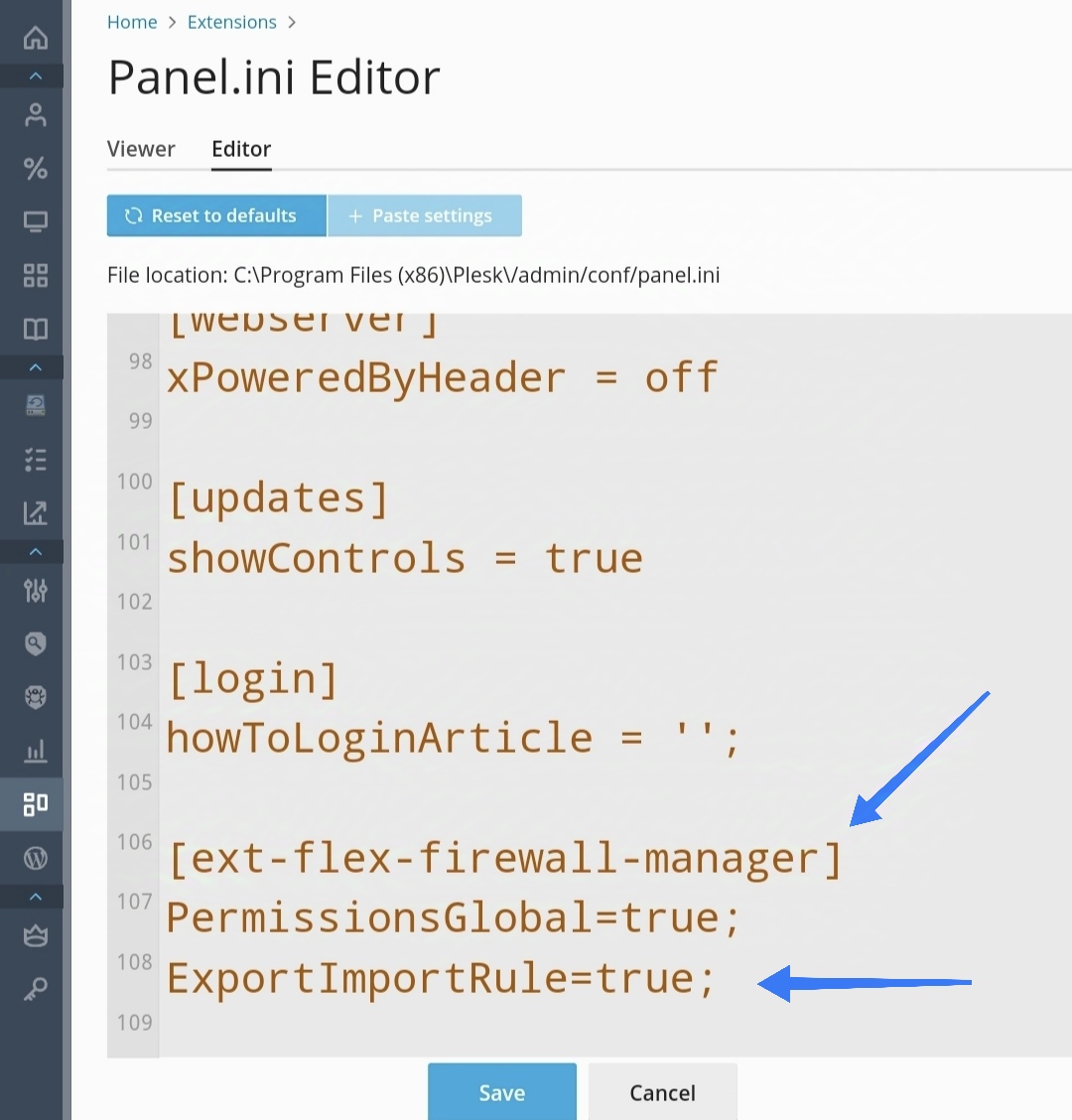
Open the panel.ini file with a text editor (Notepad or similar) and add the following lines at the end of the file:
[ext-flex-firewall-manager]\nExportImportRule=true;
Important: Make sure to add the [ext-flex-firewall-manager] block only once. If that section already exists in the file, simply add the line ExportImportRule=true; inside it.
Connect via Remote Desktop (RDP) or open the Panel.ini Editor extension from Plesk.
Navigate to the path %plesk_dir%admin\conf\panel.ini and open it with Notepad or another text editor.
Copy and paste the [ext-flex-firewall-manager] block with ExportImportRule=true; at the end of the file.
Save the file and go back into the main menu of Flex Firewall Manager from the Plesk Administrator account to verify that the changes have been applied.
Done. Once the file is saved, you will see new Backup and Restore fields at the bottom of the extension's main page in Plesk.